Dolby Millicast
Real-time streaming to massive global audiences
Dolby Millicast delivers lightning-fast, broadcast quality, real-time streaming to massive audiences across the globe. Powering the next generation of immersive, interactive, and social experiences with sub-second latency – at scale.
Trusted by the best companies in the world







Real-time Latency
End-to-end delivery in under 500 milliseconds across the globe

Device Compatibility
Stream native WebRTC to any browser across platforms without plugins

Broadcast Quality
Stream in 4K resolution, with the latest codecs, and the highest color fidelity

Affordability
Simple, transparent, all-inclusive pricing that scales as you grow

Scale Reliably
Intelligent scaling over global infrastructure enabling unlimited concurrent streams
Real-time Streaming
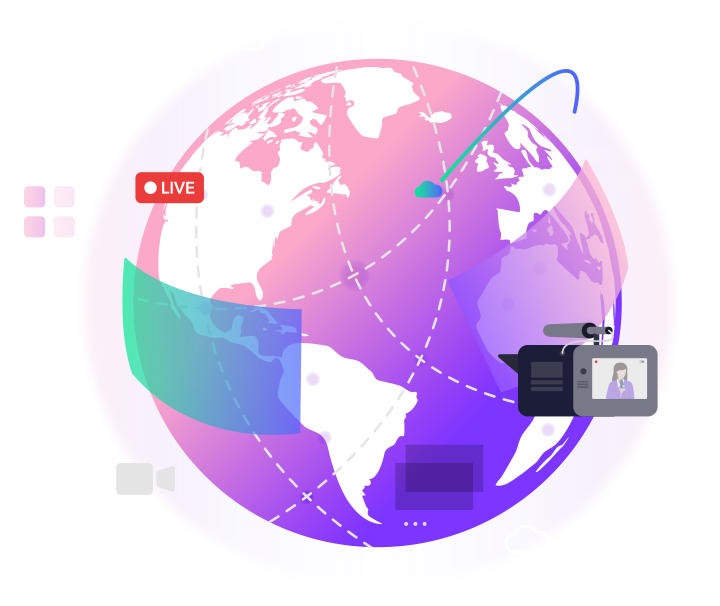
Deliver sub 500ms latency video streaming
When real-time content delivery to your audience is critical, Dolby Millicast delivers a WebRTC-based real-time CDN for large-scale, real-time streaming that is the fastest, easiest, and most scalable solution available to you. No special plugins or protocols necessary to deliver true, real-time video streaming to more than a million simultaneous viewers worldwide with less than 500 milliseconds of latency across the globe.
experience the demo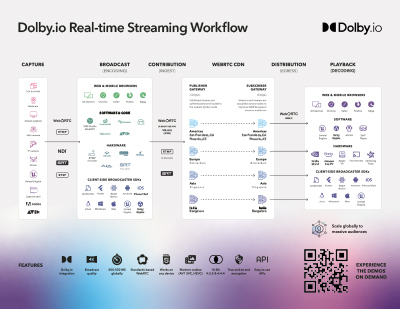
See the way that your data moves through the Dolby Millicast workflow
From capture, encoding, and ingest into the Dolby Millicast CDN through to distribution and playback, learn more by downloading our workflow diagram.
Download the diagramSRT Ingest for Dolby Millicast
Ingest your streams using SRT and deliver them instantly as WebRTC at scale using Dolby Millicast. Deliver the highest quality video with SRT that protects against jitter, packet loss, and bandwidth fluctuation. Simply sign into your Dolby.io Streaming Dashboard to start using SRT Ingest today.
Learn more with the solution brief for Dolby Millicast
Dive into our solution brief to learn how Dolby Millicast delivers the highest quality, lowest latency streaming on the market.
Access the Solution GuidePopular real-time streaming use cases
Who needs Dolby Millicast?
Those who need to live stream audio and video and ensure their audience receives the feed in less than 500 milliseconds.

Broadcasting

Auctions

Sports & Events

Financial news

Remote production

iGaming & live casino

Game engines

Audience interactivity
Virtual & hybrid events
Developer Resources
Dolby Millicast demo
See for yourself how easy it is to begin using Dolby Millicast streaming with no special plugins or protocols necessary.
Start now >
Streaming blogs
Learn more about the latest developments and product releases for Dolby Millicast.
Read more >











Transforming Fan Engagement in Sports: Going Beyond the Game
Sports fan engagement is rapidly evolving into a year-round, personalized, and immersive experience. Thanks to advancements in …


The Complete Guide to Low Latency in Live Streaming
Low latency has become a critical factor in live streaming across various use cases, emphasizing its role …
The Digital Rebirth of Live Horse Racing: How Technology is Fueling iGaming’s Rapid Rise
The digital transformation of horse racing happening, along with the iGaming revolution, is reshaping engagement, excitement, and …
Boost Viewer Engagement: 5 Pro Tips for Your Live Sports Broadcast
The future of live sports lies in providing interactive, immersive, and personalized viewing experiences. By leveraging cutting-edge …
Top 3 Health Metrics for Optimal Real-time Streaming: How to Quickly Troubleshoot Video Playback …
The key health metrics for streaming are bitrate, frame rate, and packet loss. All impact providing a …

Guide: Maximize Player Engagement with Real-time Streaming
Introducing our latest eBook, “Maximize Player Engagement with Real-time Streaming”. This comprehensive guide is an essential resource …
FAQs
Many of us have heard buzzwords being thrown around in the streaming industry like “low latency,” “ultra-low latency,” and “real-time latency” but many are still confused about what these terms mean, and are curious if latency is important for their streaming initiatives.
Latency in streaming is the time it takes for a live video stream to get from the point where a camera captures the live feed, to the device where the stream is viewed. Sometimes this is referred to as “glass-to-glass.”
Latency is important when a live video feed is time-sensitive and viewers must receive the live content in a short and predictable amount of time, like an online auction for example.
You may see Millicast mentioned in our product pages and documentation. Millicast is a real-time streaming provider that was acquired by Dolby in February 2022. You can access all of the power of the Millicast real-time streaming platform as well as enjoy the commitment of Dolby to push the technology forward to drive the next generation of immersive, interactive, and social experiences.
Low latency streaming is typically video being delivered from capture to viewer in under 10 seconds. Ultra-low latency streaming is typically under 5 seconds. Both of these use traditional HTTP streaming protocols like HLS or MPEG-DASH.
Real-time video streaming, on the other hand, aims to re-create live human interaction which requires less than 1 second from the source to the viewer. For specific use cases, like cloud gaming, the target is even faster, with 100-500 milliseconds of round-trip time to create the user experience needed for 2-way interactivity.
Real-time streaming is especially important for iGaming live auctions, AR, VR, metaverse, financial news, live events, gaming, sports, trivia, and other cases where time-to-delivery and synchronicity of the live stream is mission critical.
1. Method of capture
A delay at the source because of the capture workflow of the publisher’s environment. For example, a video publisher may have pre and post processing requirements which cause the stream to be delayed before being sent to the receiving endpoint.
2. Encoding
It takes time for an encoder to receive the stream, process it, and output the new stream for delivery. Encoding can take place at the source of the capture or in the cloud, both cases will produce some delay.
3. Method of delivery
A traditional CDN will need to cache live stream segments on a global network before they are able to be delivered to viewers over HTTP, this will generally add 30-60 seconds of latency to a live stream. Specialized network deployments are required to deliver sub-second latency streaming at scale.
WebRTC technology was originally developed for “real-time communication” in a browser, which is essentially live video conferencing. However, WebRTC has evolved tremendously to become the de facto standard for publishing and playback of real-time, sub-second live streaming.
Dolby.io Real-time Streaming product is built on Millicast technology, which uses WebRTC to support large-scale live broadcasting with sub-second latency audio and video streaming.
Historically RTMP (Real Time Messaging Protocol) was the standard for low and ultra-low latency streaming. The RTMP protocol is still used today for live publishing. However, it is now obsolete for playback because it requires the Adobe Flash plugin which disappeared in April 2020.
SRT (Secure Reliable Transport) is a protocol developed by Haivisionis not supported natively in the web browser and not designed to scale to large audiences.
Other low-latency protocols and formats include CMAF, Apple Low Latency HLS (LL-HLS), and QUIC. However, these protocols are not yet accepted standards.
There are several options, the best solution for you depends on your use case and requirements. If 30-60 seconds latency is acceptable for your stream, you can use just about any existing solution on the market from CDN providers. If you need better than 30 seconds there are specialized media server software providers which can help you solve this problem.
If you want true real-time latency, Dolby Millicast is a fully managed solution, which includes provisioning features and dashboard i.e. configuring, deploying, and managing your streaming business with guaranteed uptime.
• No setup required, instant activation
Simply activate your account and you can begin streaming to your audience instantly, at any scale.
• Affordability
The time, money and risk required to properly configure, deploy, scale and manage your own infrastructure is far more expensive than a hosted solution like Dolby Millicast real-time streaming.
• Scalability
Dolby Millicast has a true global CDN, allowing you to scale your stream to over 100,000 concurrent users.
• Security
To properly secure your streams and infrastructure from unauthorized access requires advanced knowledge and experience. With Dolby Millicast this is built into the service by industry experts who understand the importance of securing your streams.
• Future proof
Regardless of changes to device support, browsers or protocols, updates to the service are updated and deployed for you with no extra cost, time or attention required.
Each plan includes a pool of bandwidth and once this pool is used, you will begin incurring per GB overage fees at the corresponding rate of your plan.
This is the total combined number of minutes consumed by your viewers. For example, if you broadcast 1 stream for 5 minutes and you had 2 viewers, that would be a total of 10 Viewer Minutes. With Dolby Millicast you are only billed for bandwidth, the “Viewer Minutes” are provided simply for your own reference.
Yes, with the free Trial plan your CDN Bandwidth is hard-capped to 50 GB per month and the Video Archive feature is disabled. You can remove these limitations at any time by simply upgrading to a paid plan.
This is the total number of individual devices accessing your Dolby Millicast stream for both publishing and viewing. Additional streams will be automatically rejected.
This is cost for bandwidth used over the Included CDN Bandwidth of your Dolby.io Streaming pricing plan. Bandwidth overages are automatically billed at the end of your monthly billing cycle and are charged at the per GB rate corresponding to your pricing plan. You can avoid bandwidth overage fees by upgrading your account prior to the end of your monthly billing cyc
The Video Archive feature allows you to record and store your video streams as MP4 files on the Dolby Millicast cloud.
Video Archive prices are billed hourly, calculated over a period of 1 month. For example, if you stored 1 GB on our servers for 15 days @ $0.15 per GB/month, you would be billed approximately $0.075 for those 15 days of storage. The per GB price includes the costs associated with the capturing and processing the recordings.
OBS Studio (Open Broadcaster Software) is the open-source standard for live, HD video broadcasting. We have extended OBS to support WebRTC and the Dolby Millicast platform and provide this to you free of charge.
These are Software Development Kits that enable developers to quickly and easily integrate Dolby.io Streaming into native iOS and Android applications. Currently Dolby Millicast provides SDKs for Javascript and React Native.
These are the geographic regions which Dolby Millicast can deliver the lowest possible latency to your viewers based on the distance of our edge servers and the end-viewers. All production Dolby.io Streaming accounts utilize our entire global network and streams are automatically routed to and from the region closest to the publisher and viewer.
1 month. However, quarterly and annual billing options are available, please contact us for more information.
Our technical support team are experts in WebRTC and are here to assist you in implementing and troubleshooting the Dolby Millicast streaming service. Contact us at https://support.dolby.io/ with any questions!
Click here to read our Terms of Service agreement.
Please feel free to contact us anytime, we’re happy to help answer your questions.
Drive real-time interactions and engagement with sub-second latency
We are more than just a streaming solutions provider; we are a technology partner helping you build a streaming ecosystem that meets your goals. Get started for free and as you grow, we offer aggressive volume discounts protecting your margins.